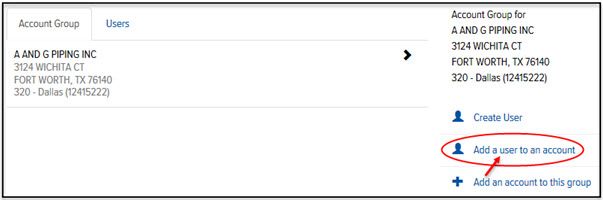
To add a User to an account:
On the Accounts page, click the Add a User to an Account link, as shown:
The Add User page displays, as shown:
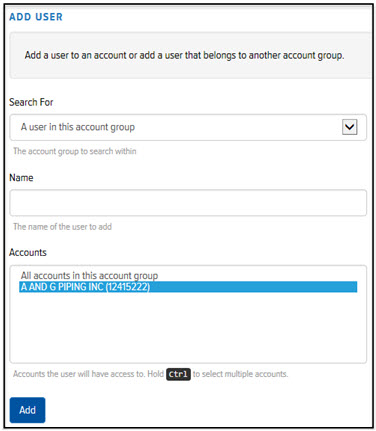
In the Search For field, click the drop-down arrow and select one of the following options: A User in this account group or A User in another account group.
In the Name field, type the User’s Name. A list of Users displays. Click the desired User.
In the Accounts section, select the accounts to which you want to add the User. To select multiple accounts, press Ctrl as you click the desired accounts. Select “All Accounts in this Account Group” if you want to add the User to all accounts.
Click Add. The User is added to the account and displays on the Users tab.
