You can use Account Groups to easily administer multiple accounts and Users for the same company/customer. For example, if an external User needs Customer Supervisor privileges on multiple accounts to manage Users, all of the accounts must be in an Account Group.
Note: You cannot add an account to an Account Group that already belongs to another Account Group.
To add an account (that has not been configured for Final Mile Track) to an Account Group:
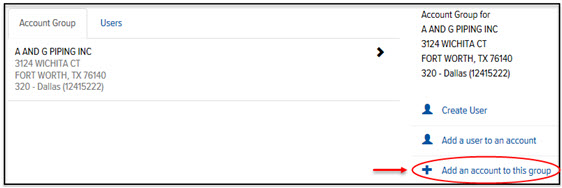
On the Accounts page, click the Add an Account to this group link, as shown:
The Add Account page appears, as shown:
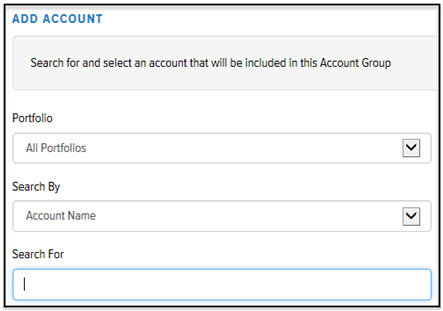
In the Portfolio field, click the drop-down arrow and select the desired Portfolio.
In the Search By field, click the drop-down arrow and select Account Name, Account Number, or Account Code.
In the Search For field, type a partial or full Account Name, Account Number, or Account Code for which you are searching. A list of possible matches displays.
Click the desired account. The Accounts page appears and displays the account on the Account Group tab.
