To work with an account, you must first select it.
To select an account:
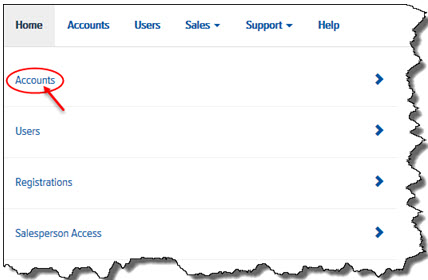
In Final Mile Track Administration, on the Home page, click the Accounts link, as shown:
The Accounts page appears, as shown:
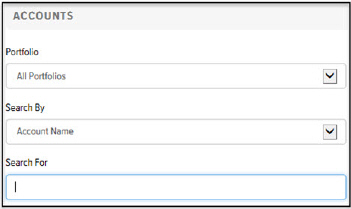
In the Portfolio field, click the drop-down arrow and select the desired Portfolio. Note: Depending on the Role that is assigned to you, you may need to select a Portfolio that you do not own and that has proxy access.
In the Search by field, click the drop-down arrow and select Account Name, Account Number, or Account Code.
In the Search for field, type a partial or full Account Name, Account Number, or Account Code for which you are searching. A list of possible matches displays in the Accounts list. Note: Only accounts that belong to branches between Branch 0 and Branch 700 are displayed.
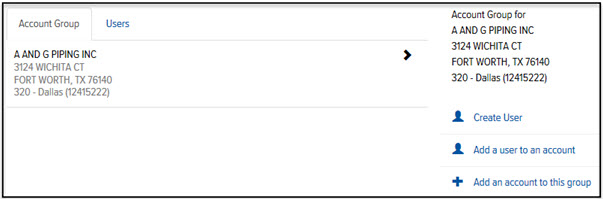
In the Accounts list, click the desired account. If the account has been activated, the Account Group tab displays, as shown:
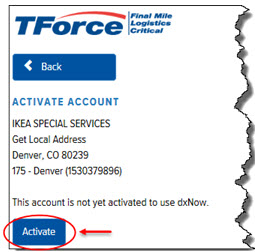
Note: If the account has not been activated, the Activate Account page appears. Click Activate, as shown:
The Account Group tab displays.
