The System page allows you to edit system settings such as the server classification, the DECS server address, and the Jasper Report Server. You should only need to edit these settings if the database schema was refreshed or the DECS server was relocated. You also edit the LDAP Server and Label Server.
On the System page, you can also purge inactive, external Users from the system. “Inactive” Users are Users who have not logged in to the application in the last 180 days.
Note: The “User Purge” option is only available to internal Users who are assigned a “Final Mile Track System Administration” or “Final Mile Track Support” Role.
Note: If a User is deleted from the Final Mile Track application, but wants to log in at a later time, the User must re-register.
To edit system settings:
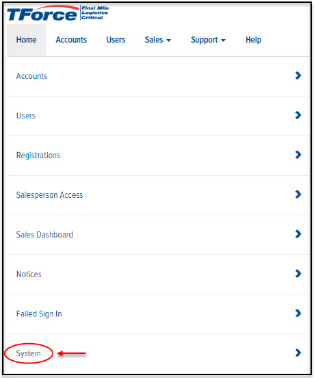
On the Home page, click the System link, as shown:
The System page appears, as shown:
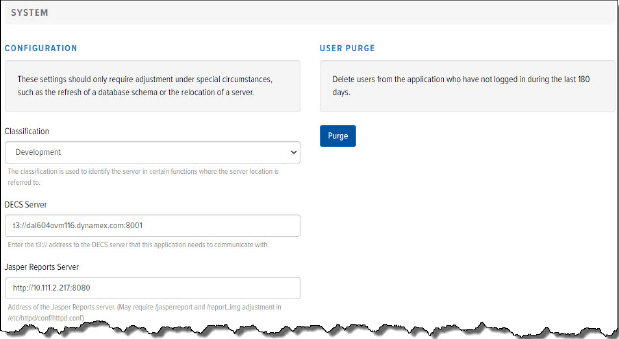
In the Classification field, click the drop-down arrow and select a server classification: Production, Training, Quality Assurance, or Development. The classification is used to identify the server in certain functions where a reference is made to the server, such as when an email is sent to a User.
In the DECS Server field, enter the t3:// address to the DECS server to which the Final Mile Track application needs to communicate.
In the Jasper Reports Server field, enter the address of the Jasper Reports server. Note: This may require /jasperreport and /report_img adjustment in /etc/httpd/conf/httpd.conf.
In the LDAP Server field, enter the address of the LDAP Server.
In the Label Server field, enter the address of the Label Server.
To purge “Inactive,” external Users from the application: Click Purge. The Users who have not logged in during the last 180 days are purged from the system.
Click Save.