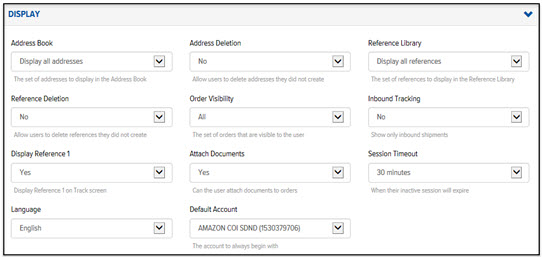
The settings in the Display section pertain to the display of information throughout the Final Mile Track application.
To define the User Preferences for display:
On the Users page, on the Settings tab, click Display. The Display section displays, as shown:
In the Address Book field, click the drop-down arrow and select one of the following options:
· Display all Addresses – displays all addresses
· Display Only Their Addresses – displays only the addresses that the User creates
In the Address Deletion field, click the drop-down arrow and select one of the following options:
· Yes – allows Users to delete addresses they did not create
· No – Users cannot delete addresses they did not create
In the Reference Library field, click the drop-down arrow and select one of the following options:
· Display all References – displays all references
· Display Only Their References – displays only the references that the User creates
In the Reference Deletion field, click the drop-down arrow and select one of the following options:
· Yes – allows Users to delete references they did not create
· No – Users cannot delete references they did not create
In the Order Visibility field, click the drop-down arrow and select one of the following options:
· All – displays all orders
· User Only – displays only orders that were created by the User
In the Inbound Tracking field, click the drop-down arrow and select one of the following options:
· Yes – only inbound shipments are displayed
· No – all shipments are displayed
In the Display Reference 1 field, click the drop-down arrow and select one of the following options:
· Yes – Displays Reference 1 in the header for each order on the Track page
· No – Reference 1 does not display on the Track page
In the Attach Documents field, click the drop-down arrow and select one of the following options:
· Yes – allows Users to attach documents to orders
· No – Users cannot attach documents to orders
In the Session Time Out field, click the drop-down arrow and select the amount of time (30 minutes, 1, 2, 4, or 8 hours) that a session can be inactive before the User is required to log in again.
In the Language field, click the drop-down arrow, and select the language in which you want to display the Final Mile Track application: English or French.
In the Default Account field, click the drop-down arrow and select the account that you want to display as the default on all Final Mile Track pages.
