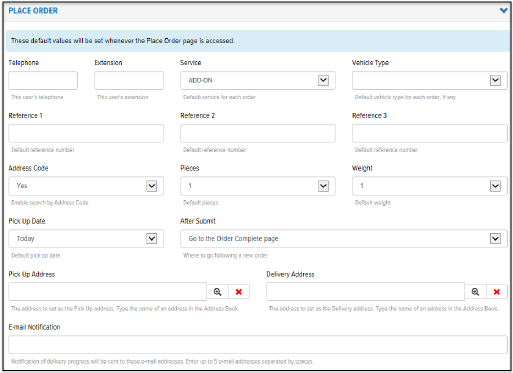
The Place Order section allows you to define default values for the fields on the Place Order page.
To define the default values for the Place Order page:
On the Users page, on the Settings tab, click Place Order. The Place Order section displays, as shown:
In the Telephone field, type a telephone number that you want to use as the default telephone number for orders. Use the format XXX-XXX-XXXX.
In the Extension field, type a telephone extension, if applicable.
In the Service field, click the drop-down arrow and select a Service that you want to display as the default for orders.
In the Vehicle Type field, click the drop-down arrow and select a Vehicle Type that you want to display as the default for orders.
In the Reference 1 field, type a value that you want to display as the default for “Reference 1” for an order.
In the Reference 2 field, type a value that you want to display as the default for “Reference 2” for an order.
In the Reference 3 field, type a value that you want to display as the default for “Reference 3” for an order.
In the Address Code field, click the drop-down arrow and select Yes if you want to display the Address Code field on the Place Order page, and allow the User to search by Address Code.
In the Pieces field, click the drop-down arrow and select the default number of pieces: 0 or 1.
In the Weight field, click the drop-down arrow and select the default weight: 0 or 1.
In the Pick Up Date field, click the drop-down arrow and select the default Pick Up Date: Today, Next Calendar Day, or Next Business Day.
In the After Submit field, click the drop-down arrow and select the page that you want to display after you submit an order (Go to Order Complete page, Go to Order Tracking page, or Go to Place Order page).
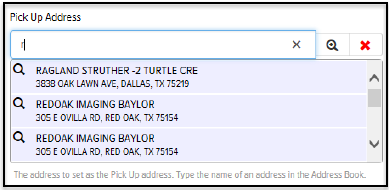
In the Pick Up Address field, type a partial address or the entire address. A list of possible matches displays. From the list, click the address that you want to always display on the pickup side of the order, as shown:
Note:
To display a list of all addresses, click the
 (Search
All Addresses) icon.
(Search
All Addresses) icon.
Note:
To clear the Pick Up Address
field, click the (Clear Address) field.
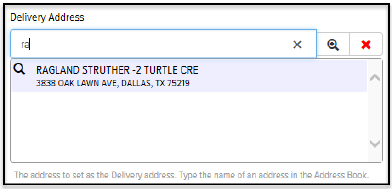
In the Delivery Address field, type a partial address or the entire address. A list of possible matches displays. From the list, click the address that you want to always display on the delivery side of the order, as shown:
Note:
To display a list of all addresses, click the (Search
All Addresses) icon.
Note:
To clear the Pick Up Address
field, click the(Clear Address) field.
In the Email Notification field, type up to 5 email addresses (separated by spaces) to which you want to send an Email Notification (a notice of delivery progress).
