You can merge an account (that has already been configured for Final Mile Track) and its associated Users with an existing Account Group.
To merge an account into another Account Group:
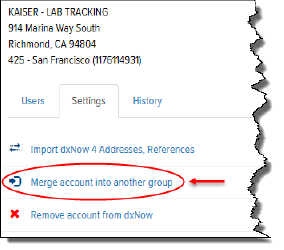
On the Account Details page, click the Settings tab.
Click the Merge Account into Another Group link, as shown:
The Merge Account page appears, as shown:
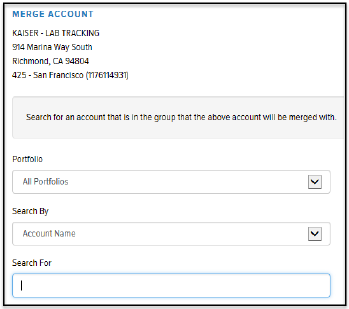
In the Portfolio field, click the drop-down arrow and select the desired Portfolio.
In the Search by field, click the drop-down arrow and select Account Name, Account Number, or Account Code for an account that belongs to the Account Group with which you want to merge the selected account.
In the Search for field, type a partial or full Account Name, Account Number, or Account Code for which you are searching. A list of possible matches displays in the Accounts list. Note: Only accounts that belong to branches between Branch 0 and Branch 700 are displayed.
Click the account that you want to merge.
Note: If the account that you selected is not the account that you want to merge, click Start Over, and search for the correct account.
Click Merge. The account and any Users configured to access that account are merged with the Account Group that you selected.