You will need to change your password if you are logging in for the first time, if your password has expired, or if you are logging in with a temporary password (because you forgot your password). You can also change your password for any other reason.
To change your password:
Note: All of the fields on the Change Password page are case in-sensitive.
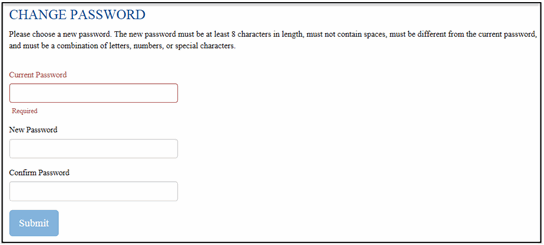
On the Final Mile Track Main Menu Bar, click Settings > Change Password. The Change Password page appears, as shown:
In the Current Password field, type your current password.
In the New Password field, type a new password. The new password must be at least 8 characters in length, must not contain spaces, must be different from the current password, and must be a combination of letters, numbers, or special characters.
In the Confirm Password field, type the new password again.
Click Submit.