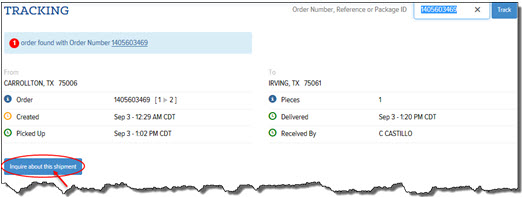
On the Loginless Tracking page, you can submit an inquiry about a shipment, which creates a CRM case in the Microsoft Dynamics CRM application. After you submit an inquiry about a shipment, an inquiry number is displayed. If the case hasn’t been resolved after 1 hour, the Requestor receives an e-mail indicating that the case is still in progress. That is an automatic process.
To inquire about a shipment and create a CRM case:
On the Loginless Tracking page, locate the shipment that you want to inquire about.
Click the Inquire about this shipment button, as shown:
Note: The Inquire about this Shipment button only displays for U.S. shipments and branches that belong to legal entity 1 or 182 (US/West, US/East).
The Shipment Inquiry form displays, as shown:
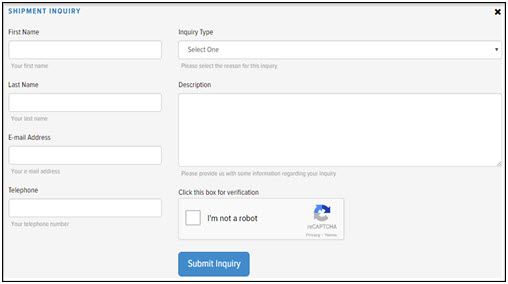
In the First Name field, type your first name.
In the Last Name field, type your last name.
In the Email Address field, type your email address.
In the Telephone field, type your telephone number.
In the Inquiry Type field, click the drop-down arrow, and select a reason for the inquiry:
· Complaint
· ETA/Order Status
· Missing Package
· POD Request
· Pickup Inquiry
Note: The Inquiry Type is supplied to the CRM application.
In the Description section, type a brief description of your inquiry.
Click the I’m not a robot check box.
Click Submit. After you submit an inquiry about a shipment, an inquiry number displays, as shown below. A case is created in the Microsoft Dynamics CRM application.
