To add a shipment:
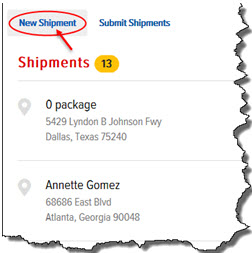
On the Shipments page, click New Shipment, as shown:
The Shipment Details page appears, as shown:
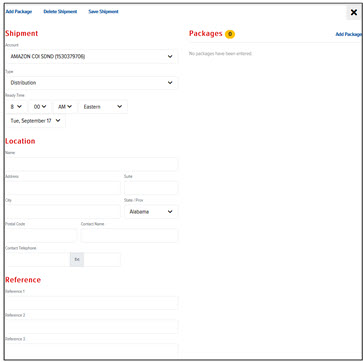
In the Shipment section, in the Account field, click the drop-down arrow, and select an account.
In the Type field, click the drop-down arrow, and select Distribution or Collection.
In the Ready Time fields, enter a time, time zone, and date.
In the Location section, enter a stop name, address, suite, city, state/province, postal code, contact name, and contact telephone and extension.
In the Reference section, enter values for stop References 1-3, if applicable.
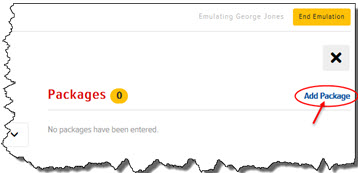
In the Packages section, click Add Package, as shown:
The Package page appears, as shown:
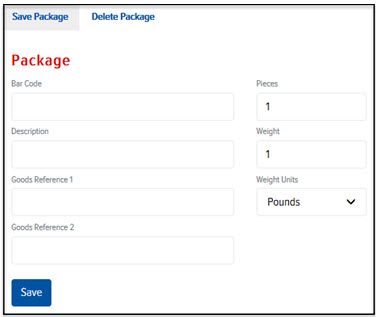
In the Bar Code field, enter a bar code.
In the Pieces field, enter the # of pieces.
In the Description field, enter a description of the package.
In the Weight field, enter the weight (pounds or kilograms) of the package.
In the Weight Units field, click the drop-down arrow, and select Pounds or Kilograms.
In the Goods Reference 1 field, enter a Reference, if applicable.
In the Goods Reference 2 field, enter a Reference, if applicable.
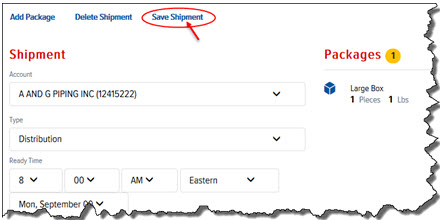
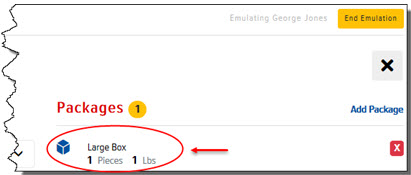
Click Save. The package is displayed in the Packages list, as shown:
Note:
To delete packages from a shipment, in the Packages
section, click the  (Delete) icon next to the
packages that you want to delete. Or, on the Packages
page, click the Delete Package
link. The packages are removed from the Packages
list.
(Delete) icon next to the
packages that you want to delete. Or, on the Packages
page, click the Delete Package
link. The packages are removed from the Packages
list.
Click the Save Shipment link, as shown: