To search for a saved order:
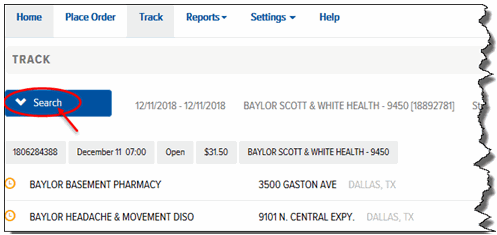
On the Saved Orders page, click Search to expand the filter criteria fields, as shown:
The Search section appears and displays the filter criteria fields, as shown:
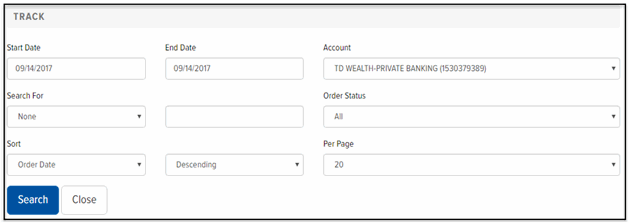
Click in the Start Date field. A calendar displays. Click the desired start date. Or, type a date using the format MM/DD/YYYY.
Click in the End Date field. A calendar displays. Click the desired date for the end date. Or, type a date using the format MM/DD/YYYY.
In the Account field, click the drop-down arrow, and select a specific account.
In the Search For field, click the drop-down arrow and select one of the following options: Address, Reference, Order Number, Package ID, or Package Reference. Then, type the criteria for which you want to search.
In the Order Status field, click the drop-down arrow, and select Saved.
In the Sort field, click the drop-down arrow and select one of the following options by which to sort the orders: Order Date, Order Number, or Status.
In the 2nd Sort drop-down list, click the drop-down arrow and select one of the following options to define the sort order: Ascending or Descending.
In the Per Page field, click the drop-down arrow and select one of the following options by which to display the orders: 20, 40, 60, 80, or 100.
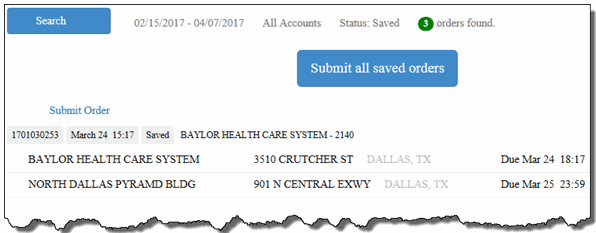
Click Search. The saved orders that match the defined filter criteria display in the Saved Orders list, as shown: