(zero
documents are attached to the order).
(zero
documents are attached to the order).To attach a document to an order or a specific stop:
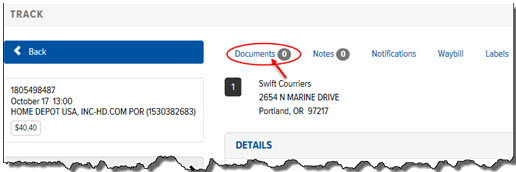
On the Order Detail page, click the Documents link, as shown below:
Note: The numerical icon
that displays next to the Documents
option indicates the number of documents that are attached to the order.
For example: (zero
documents are attached to the order).
The Documents section displays.
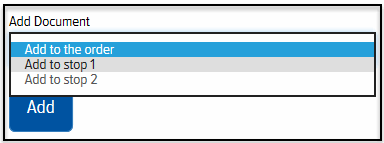
In the Add Document field, click the drop-down arrow and select Add to the order if you want to attach the document to the entire order. Or, select Add to Stop X to attach the document to a specific stop, as shown:
Click Add. The Choose File to Upload window appears.
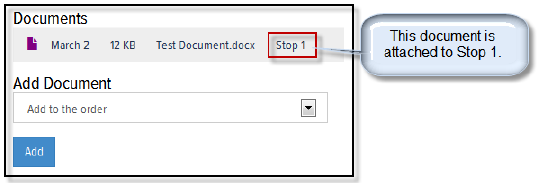
Navigate to the desired file, and double-click it. The document displays in the Documents list. If the document is attached to a specific stop, the stop is also displayed, as shown: