You can add a critical pickup item to a stop by selecting a destination, and then entering item information (barcode, pieces, and weight).
To add a critical pickup item to a stop:
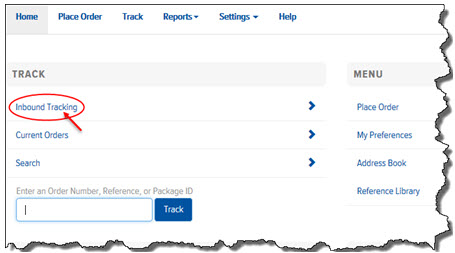
On the Home page, in the Track section, click the Inbound Tracking link, as shown:
Note: If the Inbound Tracking link does not display on the Home page, your System Administrator has not granted you access to the Inbound Tracking feature. For instructions, see Display.
The Inbound Tracking page appears.
In the Account field, click the drop-down arrow and select the desired account.
Locate the desired stop, and click
the  (Stop Details) icon. The
stop details display.
(Stop Details) icon. The
stop details display.
In the Add Critical Pickup section, in the Destination field, click the drop-down arrow and select the delivery address for the item.
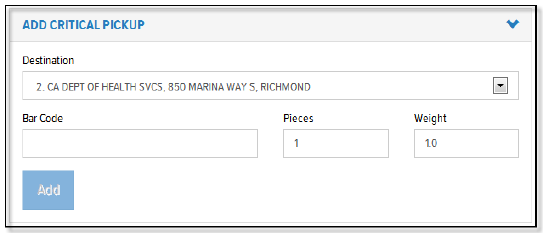
In the Bar Code field, enter the item barcode.
In the Pieces field, enter the number of pieces.
In the Weight field, enter the total weight of the pieces.
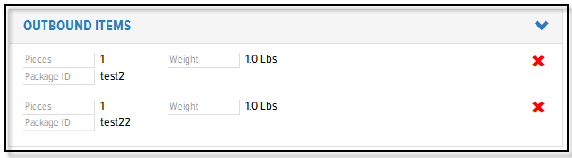
Click Add. The critical pickup item is added to the Outbound Items list, as shown: