On the Order Detail page, you can map the location of each stop within an order.
To map a stop location:
On the Orders page, locate the desired order, and click a stop within the order. The Order Detail page appears.
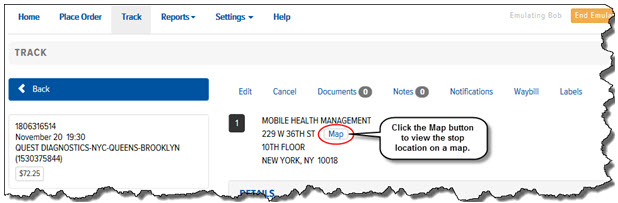
Click the stop that you want to map.
Click the Map button, as shown:
A map of the stop’s location displays, as shown:
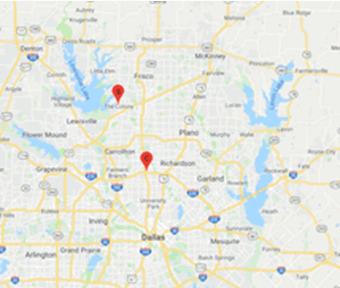
A completion location icon ( ) displays if a
stop contains completion coordinates (gps latitude and gps longitude).
A location icon (
) displays if a
stop contains completion coordinates (gps latitude and gps longitude).
A location icon ( )
displays if a stop contains location coordinates (latitude and longitude).
)
displays if a stop contains location coordinates (latitude and longitude).
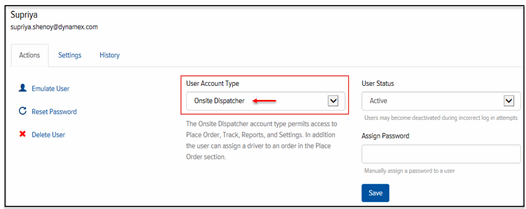
Note: The Map button only displays if the User is assigned an “Onsite Dispatcher” User Account Type (in Final Mile Track Administration), as shown: