The Reference Code Report groups and subtotals the orders (in the selected date range) by Reference Code. To run a Reference Code Report, you must define the Account, Date Range, Sort, Format (PDF or Excel), and indicate whether or not to exclude cancelled and/or delivered orders.
To run a Reference Code Report:
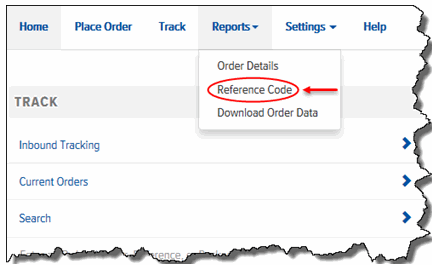
On the Final Mile Track Main Menu Bar, click Reports, and select Reference Code, as shown:
The Reference Code Report page appears, as shown:
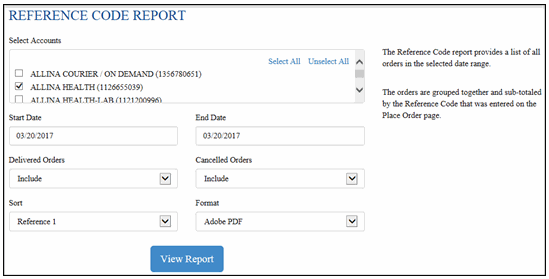
In the Select Accounts section, click the check box (to display a check mark) next to each account that you want to include in the Reference Code Report.
Note: Click the Select All link to include all of the accounts that are displayed. Click the Unselect All link to exclude all of the accounts. You must select at least one account to run the report.
Click in the Start Date field. A calendar displays. Click the desired date for the start range. Or, type a date using the format MM/DD/YYYY.
Click in the End Date field. A calendar displays. Click the desired date for the end range. Or, type a date using the format MM/DD/YYYY. Note: The date range cannot exceed 100 days.
In the Delivered Orders field, click the drop-down arrow and select Include (includes delivered orders) or Exclude (excludes delivered orders).
In the Cancelled Orders field, click the drop-down arrow and select Include (include cancelled orders) or Exclude (excludes cancelled orders).
In the Sort field, click the drop-down arrow and select the Reference by which you want to sort the orders.
In the Format field, click the drop-down arrow and select Adobe PDF or Microsoft Excel.
Click View Report. The Reference Code Report displays, as shown:
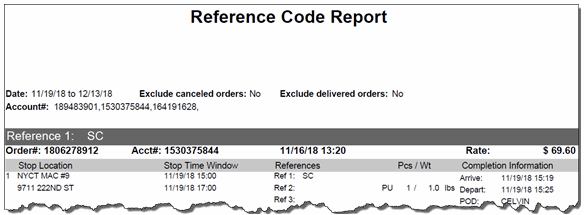
Print or save the report.
