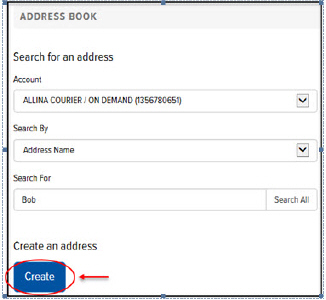
To add an address to the Address Book:
On the Address Book page, click Create, as shown:
The Address section displays, as shown:
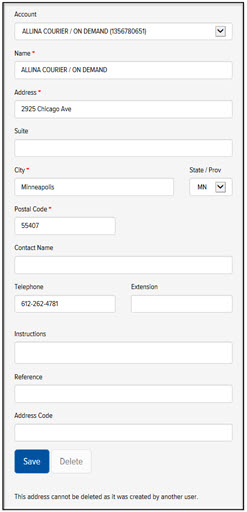
In the Account field, click the drop-down arrow and select the desired account.
(Required) In the Name field, type a name for the address.
(Required) In the Address field, type an address.
In the Suite field, type a suite number.
(Required) In the City field, type a city.
In the State field, click the drop-down arrow and select a state.
(Required) In the Postal Code field, type a postal code.
In the Contact Name field, type a contact name.
In the Telephone field, type a telephone number using the format XXX-XXX-XXXX.
In the Ext. field, type an extension (if applicable).
In the Instructions field, type instructions.
In the Reference field, type a reference.
In the Lookup Code field, type a lookup code.
Click Save. A confirmation is displayed, as shown:
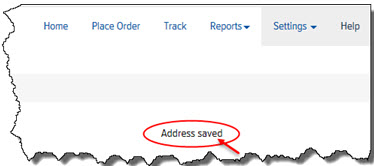
The address is updated to the Address Book and will display in the Address drop-down lists throughout the Final Mile Track application.
