You can create a User for specific Accounts or for all Accounts within an Account Group. The new User will receive a “Registration Email” that contains a password to log in to the Final Mile Track application.
Note: If you attempt to create a User using the same email address as an existing User, an error message displays.
To create a User:
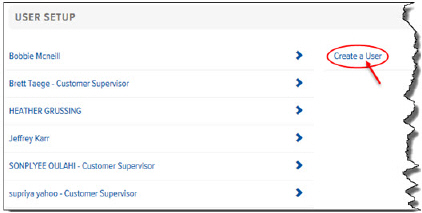
In the Final Mile Track application, on the Final Mile Track Main Menu Bar, click Settings > User Setup. The User Setup page appears.
Click Create a User, as shown:
The Create a User page appears, as shown:
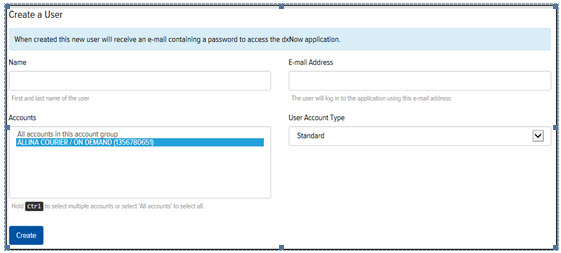
In the Name field, type the name of the User.
In the Email Address field, type the User’s email address. This is the email address that is used to send the User a “Registration Email” describing how to log in to Final Mile Track. This email address becomes the external User’s Username.
Note: To prevent typos, copy the Name and Email Address values from the Registration Email, and paste them on the Create a User page.
In the Accounts section, click the accounts to which you want to grant the User access. To select multiple accounts, press Ctrl as you click the desired accounts. Click “All Accounts in this Account Group” if you want to grant the User access to all accounts within the Account Group at that point in time. Note: The User will not have access to accounts that are added to the Account Group at a later time.
In the User Account Type field, click the drop-down arrow and select one of the following account types:
Note: Most Customer Users who are set up by a Salesperson or a Customer Service Manager will be a Standard or a Supervisor Account Type.
· Standard - grants the User access to Place Order, Track, Reports and Settings
· Tracking - grants the User access to the Track section only
· Agent - grants the User access to Place Order, Track, and Settings. The User can either view all orders or only orders that he/she placed. An Administrator can define this setting by selecting All or User Only in Final Mile Track Administration > Users > Settings Tab > Display > Order Visibility. The Order Visibility field default is “User Only.” Agents cannot view rates.
· Supervisor - grants the User access to Place Order, Track, Reports, and Settings. The User can also access the User Setup section to create and/or delete Users within their Account Group, and to modify those Users’ settings.
Click Create. The new User displays in the Users list and is now a member of the Account Group.
A Registration Email is sent to the User.
Note: Within 2 hours of creating the User, the Registration status changes to “Completed.”
