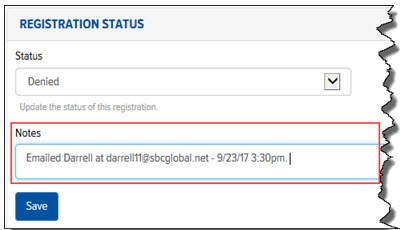
On the Registration Details page, you can:
· View company and contact information
· Define a status for the Registration
· Enter notes for the Registration
· Define an alternate assignment (send a Registration email to an additional Salesperson)
To edit a Registration:
On the Registrations page, click the Registration that you want to edit. The Registration Details page displays.
In the Registration Status section, in the Status field, click the drop-down arrow and select one of the following options:
· New – The User has not completed the Registration process.
· In Progress – The Registration was sent to a Salesperson.
· Completed – The User has completed the Registration process. The Automatic Registration Completion feature automatically changes the status of “New” or “In Progress” Registrations to the “Completed” status. The feature performs this task once every two hours. If a User is created with the email address that is defined in the Registration, the Registration is considered “Completed.”
· Denied – The User completed the Registration process, but was denied registration.
In the Registration Status section, in the Notes field, type any desired notes for the Registration, as shown:
Click Save.
To define an Alternate Assignment, go to Send a Registration Notification to a Salesperson.
