To select accounts to include in the Download Order Data Report:
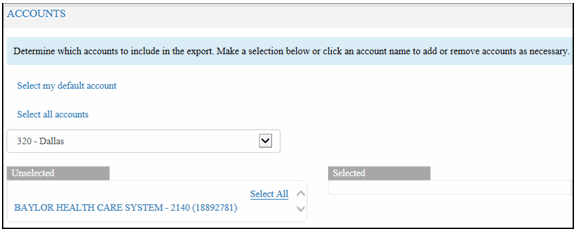
Click the Accounts link. The Accounts section displays, as shown:
Note: To hide the Accounts section, click the Accounts link.
Select the accounts to include in the report. Do one of the following:
· Click the Select My Default Account link to include your default account in the report.
· Click the Select All Accounts link to include all of your accounts in the report.
· Click the drop-down arrow, and select a specific branch. All accounts that belong to the branch are included in the report.
In the Unselected column, click the accounts that you want to include in the report. The accounts move to the Selected column. Or, to select all of the accounts, click the Select All link.
The accounts that you select are displayed in the Selected column.
Note: To un-select an account, in the Selected column, click the accounts that you want to un-select. Or, click the Unselect All link.
Go to Select Fields.
